Creating a Chart from a SharePoint List
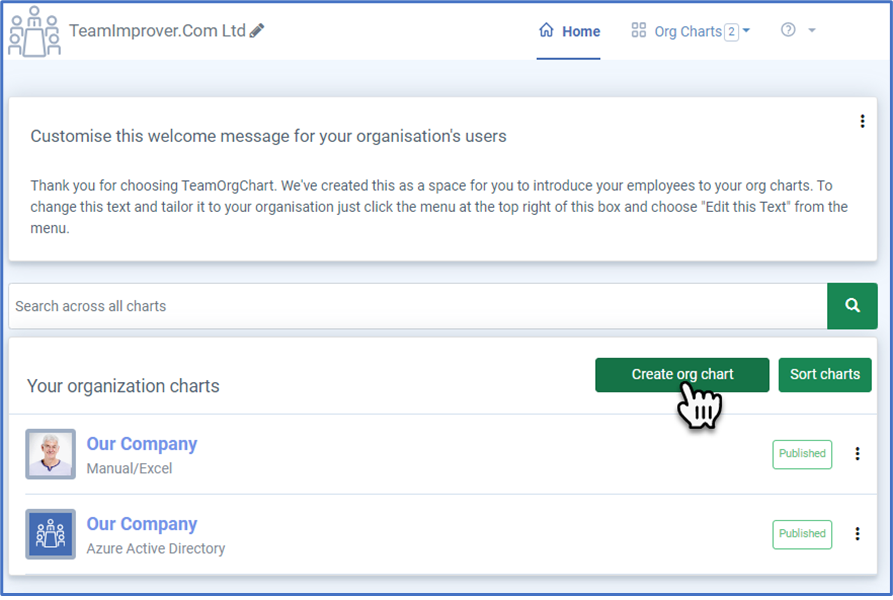
Building a dynamic org chart from a SharePoint List
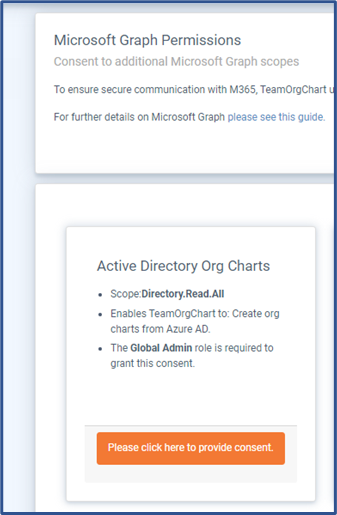
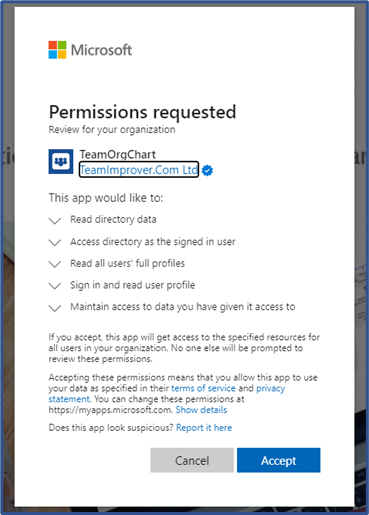
To create a chart from a SharePoint List TeamOrgChart will require you to grant additional permissions.
The permission, or scope, required is Sites.Read.All and this can only be granted by an account with Global Admin rights. This is a one-time operation and can be done from the Permissions page or from the Create Chart page.
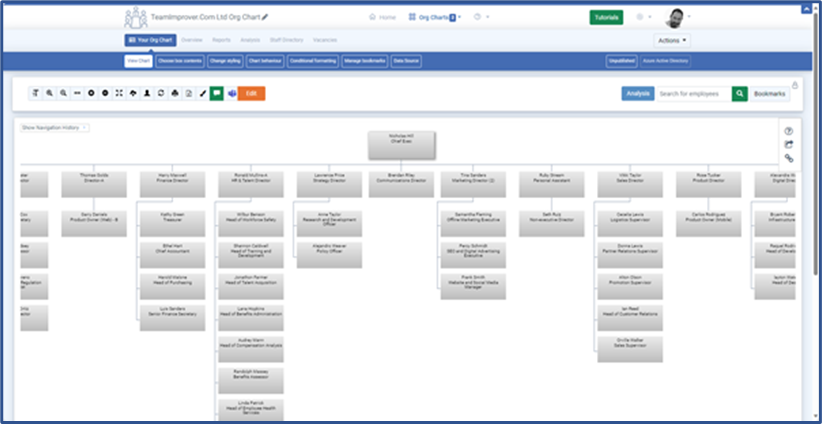
Organization charts created from SharePoint lists are dynamic. TeamOrgChart reads the current information required directly from the approved SharePoint list through Microsoft Graph when generating or refreshing the chart. Updates typically appear in the org chart within thirty minutes, though in some cases it may take longer.
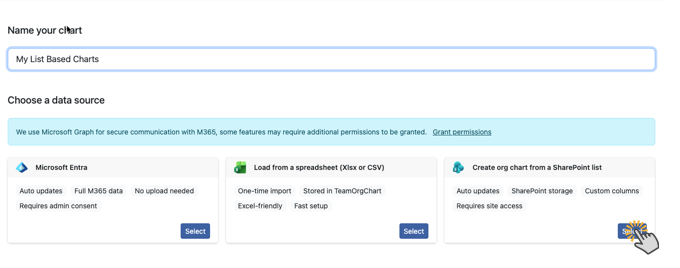
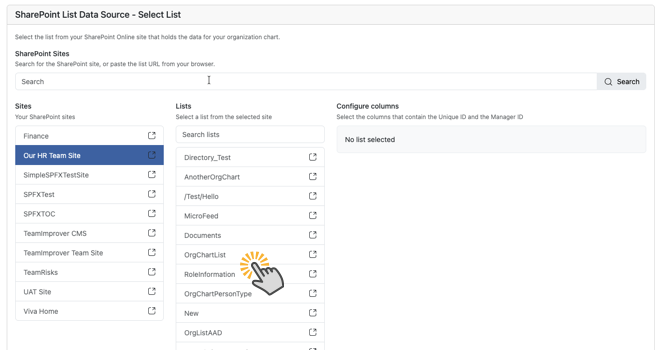
Alternatively you can simply paste the URL of the SharePoint list into the search box and TeamOrgChart will locate it for you.
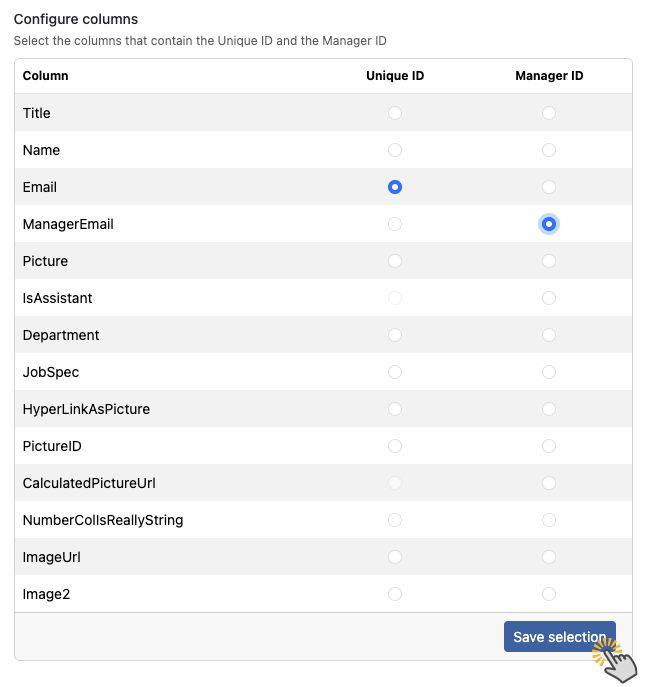
- The column that contains the unique ID of the employee
- The column that contains the manager ID
Recommended Steps
Learn More
Create a chart from a SharePoint list(c) TeamImprover.Com